

The ConnectMachine web app is live at app.connectmachine.ai. Already using the app? Sign in with the same email or phone number. New here? Start with the three steps below.
Use your phone or your browser, whichever is closer
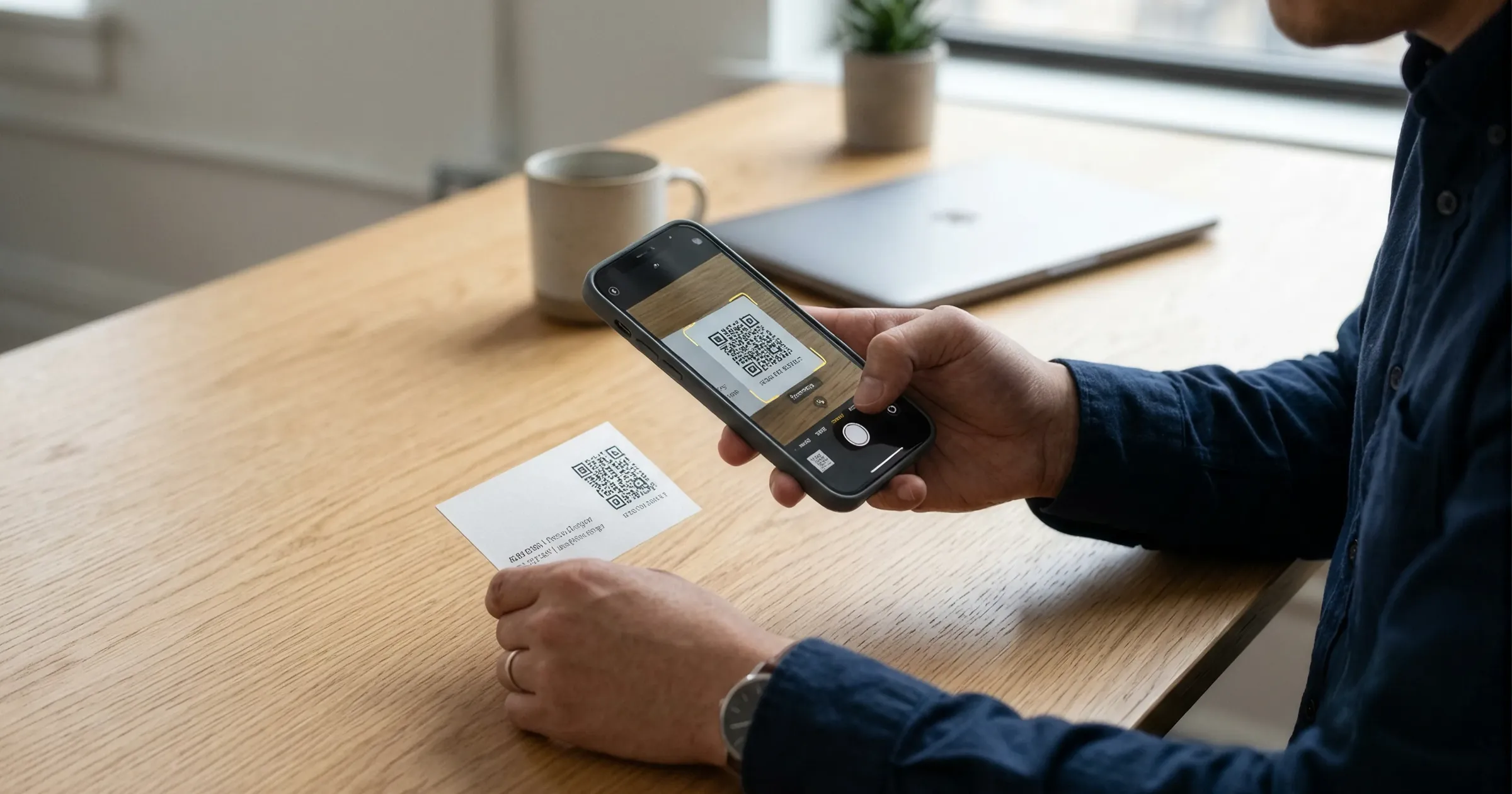
At an event, your phone is the easy choice: you are standing in front of someone and want to share your card in a few seconds. Back at your desk, a laptop is easier for getting cards ready before a trip or going through the people you met at a conference.
On your phone
- Share your card by QR code when you meet someone
- Scan paper cards as you collect them
- Keep your card in Apple Wallet or Google Wallet
In your browser
- Sign in at app.connectmachine.ai from any computer
- Work on a bigger screen with a keyboard
- Same account and cards as your phone
Some features may work differently on the web and on mobile. The help pages list what each one supports today.
How to start using ConnectMachine on the web
If you already use the app, skip to step 2.
- 1
- 2
Open the web app
Go to app.connectmachine.ai/login on your computer.
- 3
Sign in with the same email or phone
Use the email or phone number from your app account. Your cards will be there.
ConnectMachine login
The ConnectMachine login page for the web is app.connectmachine.ai/login. Bookmark it so you can get back to your cards from any computer.
Can't log in? Make sure you signed up in the app first and are using the same details. The help pages cover account issues.
Free tools that work in the browser without an account
Not ready to sign up? These two run in your browser, no download needed.
- Digital business card creator: add your name, role and contact details, check the live preview, then share it by link or QR code.
- Bulk business card scanner: upload photos of the cards you collected, review the details, and export a CSV or vCard file.
The person you share your card with does not need ConnectMachine either. Your card opens in their browser and they can save your contact from there. Here is how sharing without an app works.