Free event badge maker, with a QR code that saves each attendee's contact
Make name badges for every attendee in one go. Upload your attendee list, pick one of five badge templates and a colour, and print on A4 or US Letter. Each badge carries a QR code that saves that person's contact when someone scans it.
Free, no watermark, no limit on attendees. Your list never leaves your browser.

The ConnectMachine event badge maker is a free name tag maker that turns an attendee CSV into print-ready name badges, one per row, laid out on A4 or US Letter with cut marks. Every badge has a QR code holding that attendee's contact, so anyone who scans it with a phone camera can save them in one tap.
It works for conferences, trade shows, meetups, workshops and volunteer days. Choose from five name badge templates in three standard sizes: 4 x 3 in landscape, 3 x 4 in portrait and 3.5 x 2.25 in name tags. The CSV is read in your browser and never uploaded. Making one badge for yourself works too.
How to make event badges from a CSV
One badge per row of your attendee list, however many rows there are.
- 01
Export your attendee list. From Eventbrite, Luma, Google Forms, a spreadsheet or your registration tool, save it as CSV. Column names are matched automatically.
- 02
Design the badge once. Add your event name and logo, pick a template, colour and size, and choose what each attendee's QR code saves. Flip through the preview to check real names.
- 03
Print or download. Select Print badges to print them on A4 or US Letter with cut marks, ready for badge holders. Or download the pages for a print shop.
Event badge and name badge templates
Five templates: Wave, Bold, Split, Minimal and Classic. Each one works as a 4 x 3 in conference badge, a 3 x 4 in lanyard badge or a 3.5 x 2.25 in name tag, in any colour you pick. Every example below was made with this tool from its sample attendee list.
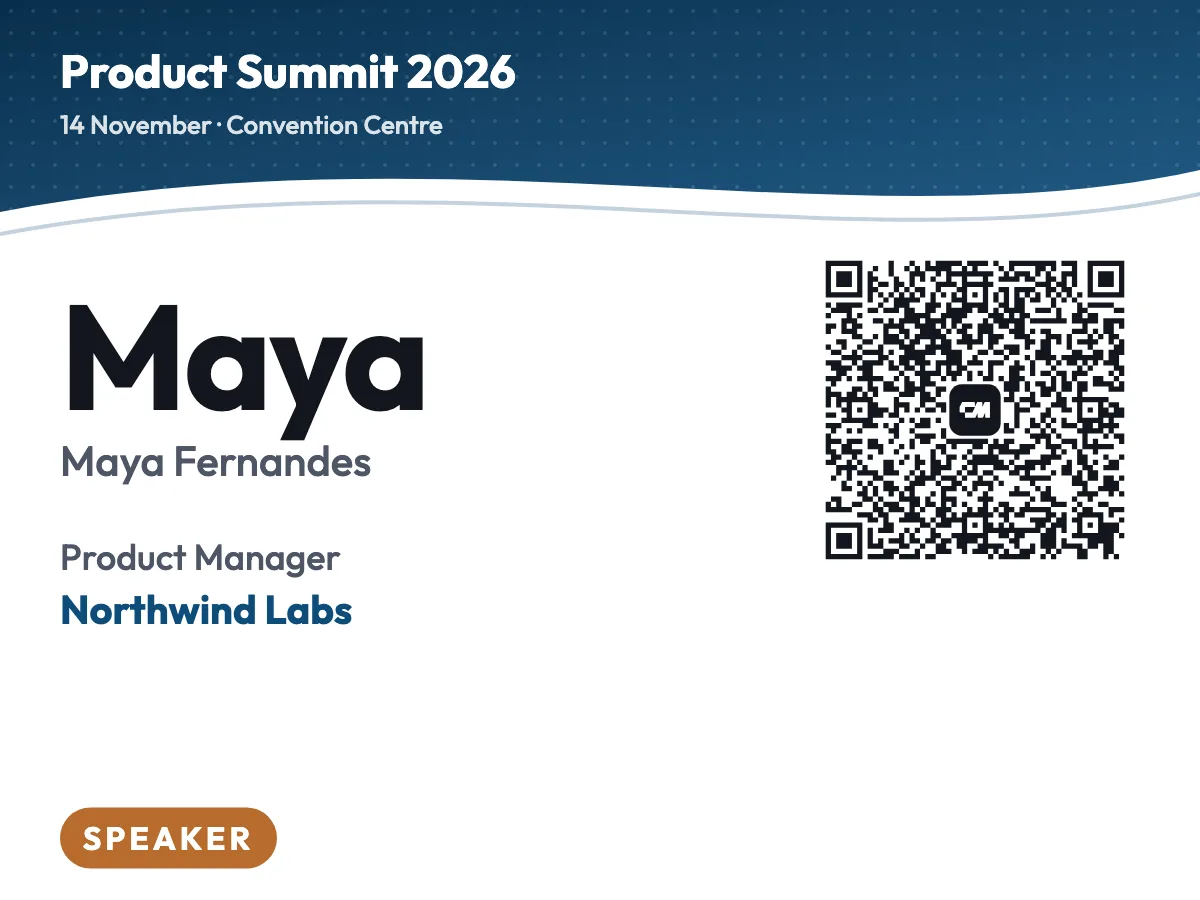
Wave, speaker badge 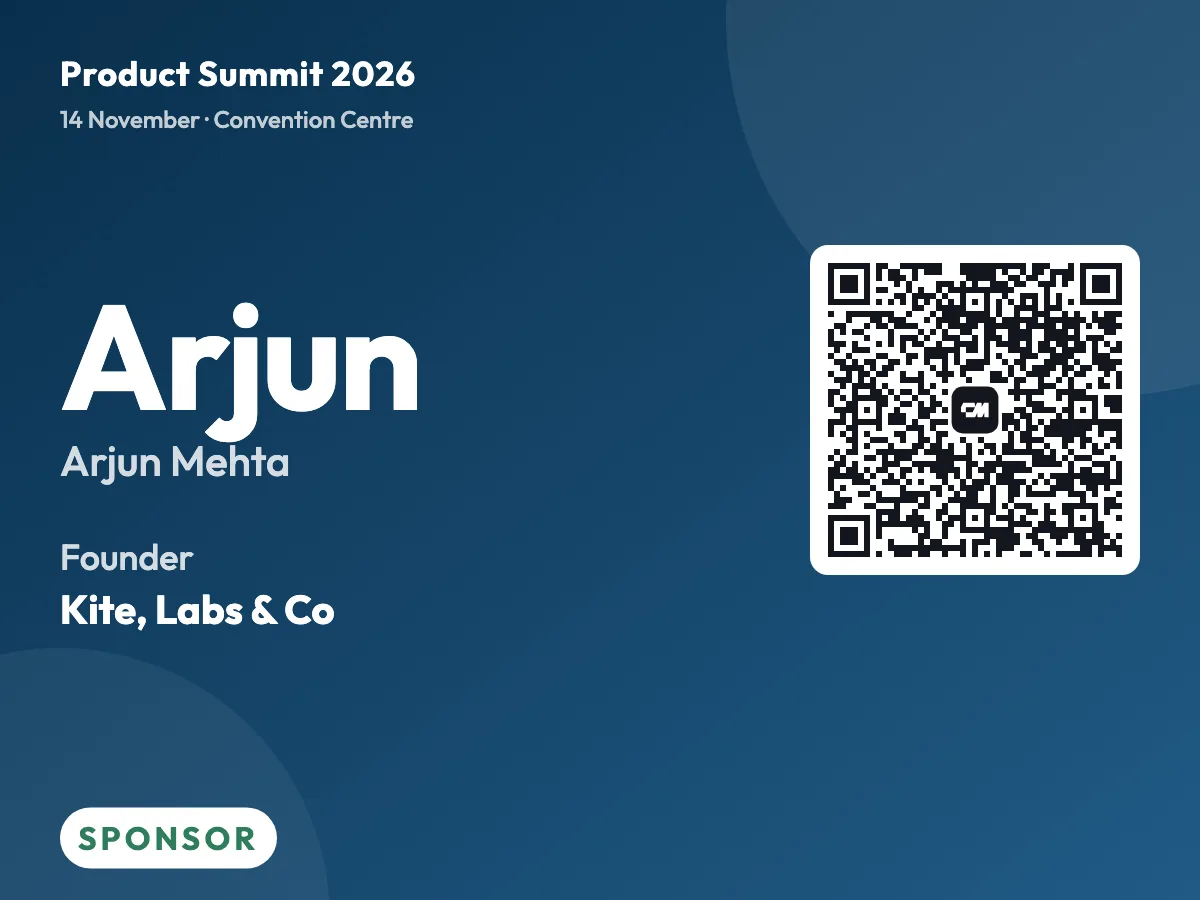
Bold, sponsor badge 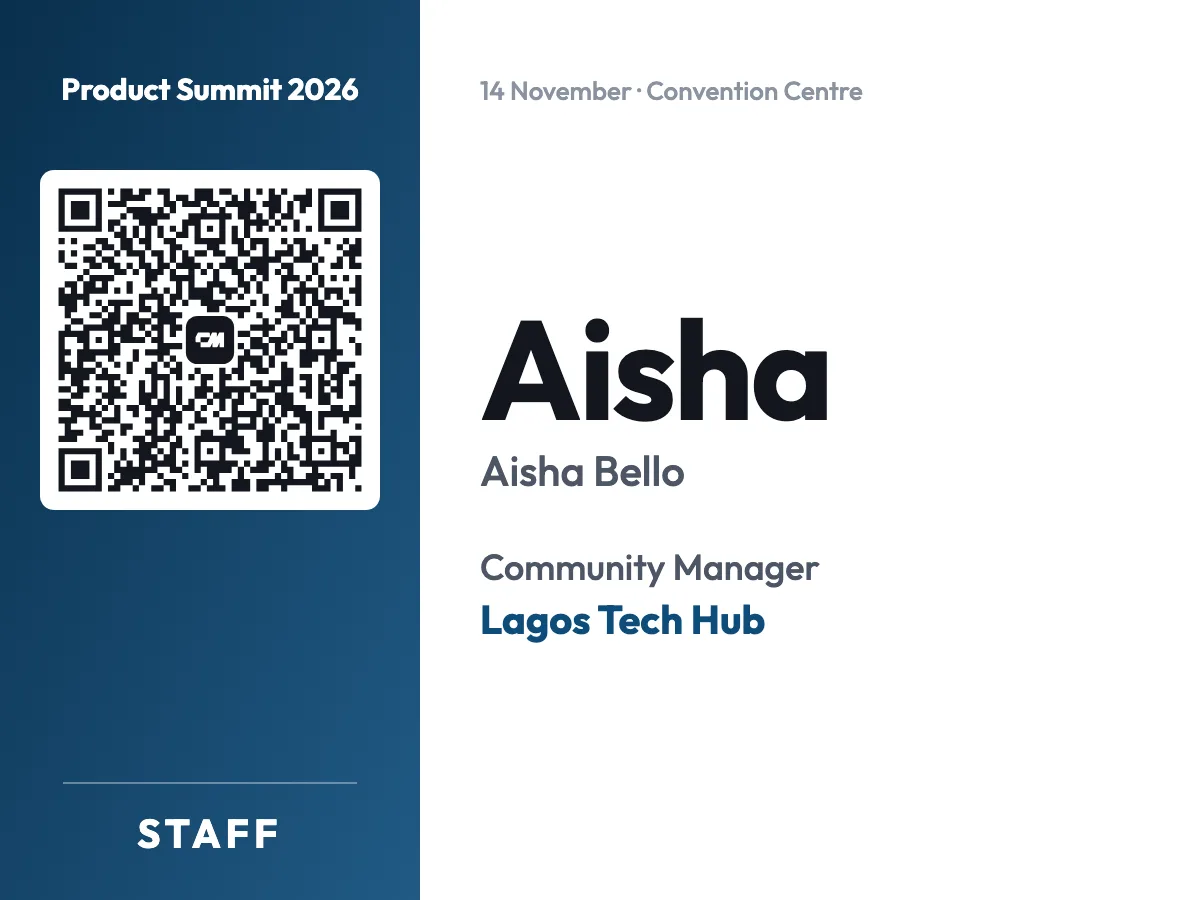
Split, staff badge 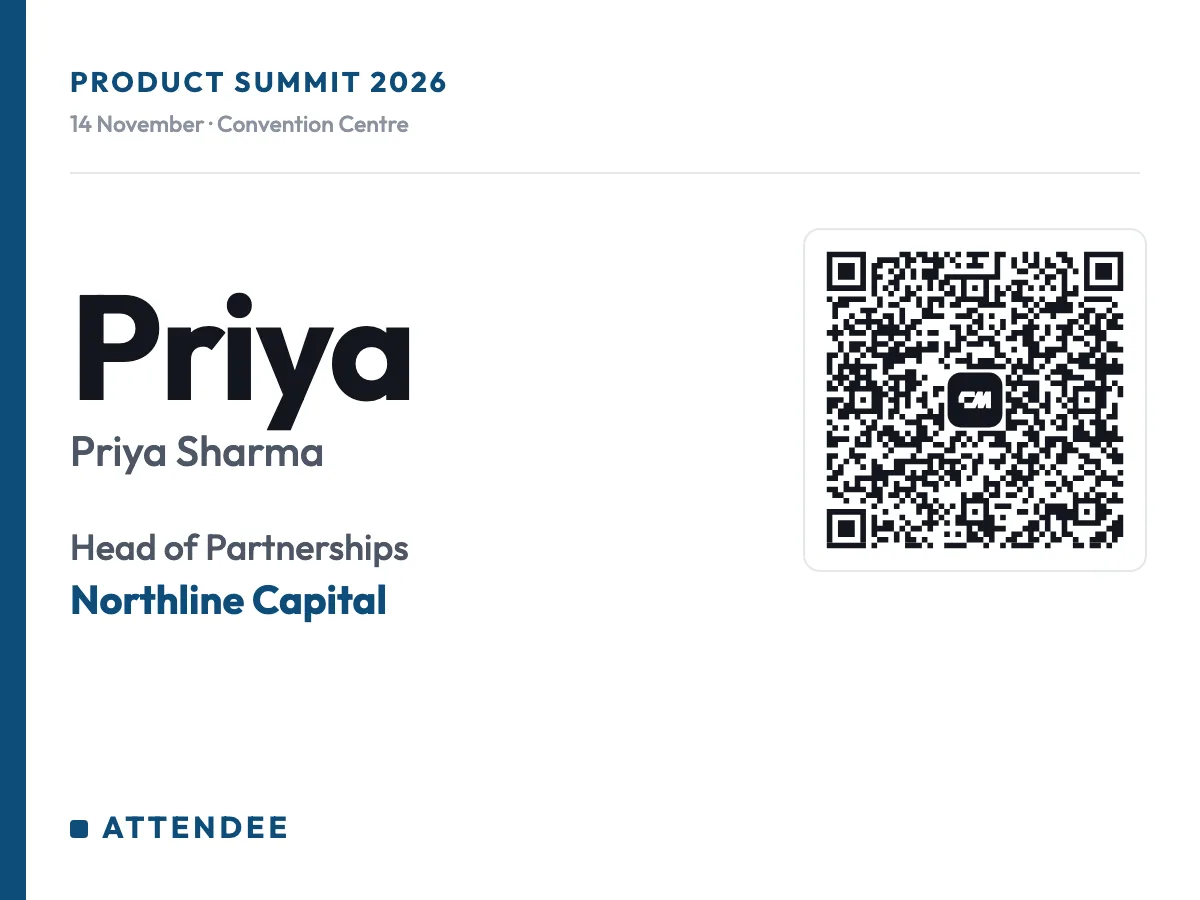
Minimal, attendee badge 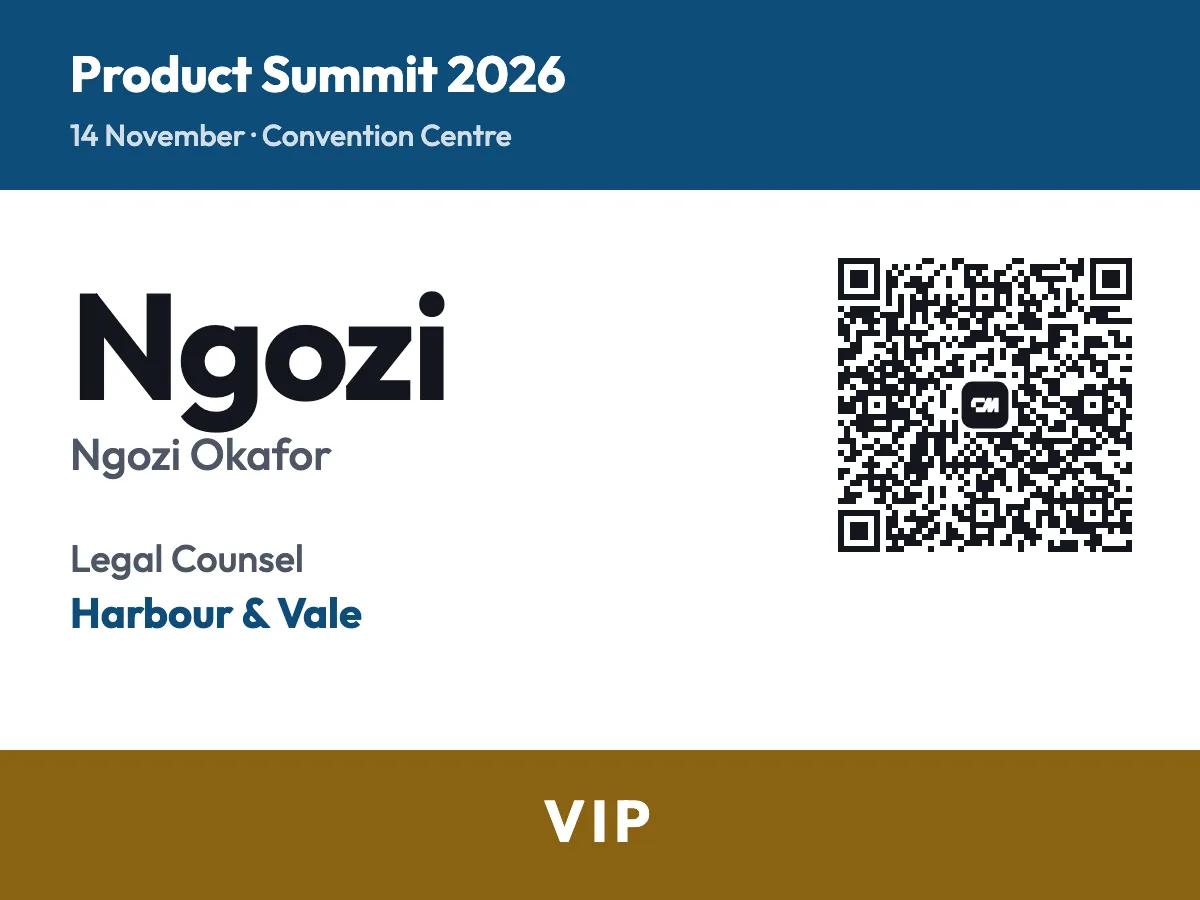
Classic, VIP badge
Badges for speakers, sponsors, staff and every attendee type
Add a Badge type or Ticket type column to your list and every badge shows it: Speaker, Sponsor, Staff, VIP, Press, Volunteer, Student, or any type you use, such as Delegate, Exhibitor or Mentor. Each type gets its own colour, and you can change any of them, so people can spot a speaker or a staff member from across the room.
Making a single badge? Type any badge type you like in the form.
What your attendee CSV needs
Only a name is required. Everything else is optional, and headers are recognised in their common forms.
| Badge field | Column names that work | Needed |
|---|---|---|
| Name | Name, Full name, or separate First name and Last name columns | Yes |
| Company | Company, Organization, Employer | No |
| Job title | Job title, Title, Position, Designation | No |
| Badge type | Ticket type, Badge type, Type, Category | No. Any type works, and each gets its own colour |
| Email, E-mail, Work email | No | |
| Phone | Phone, Mobile, Cell | No |
| Social profile | LinkedIn, Social, Profile, Website | No, added to the contact code |
From Excel: File, Save As, then choose CSV UTF-8 so names with accents come through intact. From Google Sheets: File, Download, then Comma separated values. From Eventbrite or Luma: export the attendee or guest list as CSV. Tab separated and semicolon separated files work too.
Rows without a name are skipped and counted, so nothing disappears silently.
Event badge and name tag sizes
Three standard name badge sizes that fit the badge holders and label sheets most events already use.
| Size | Best for | Per page |
|---|---|---|
| 4 x 3 in, landscape | Conferences and trade shows, in a clear holder on a lanyard | 4 on A4, 6 on US Letter |
| 3 x 4 in, portrait | Lanyard badges where the name reads top to bottom | 4 on A4, 6 on US Letter |
| 3.5 x 2.25 in | Stick-on name tags for meetups, workshops and mixers | 9 on A4, 9 on US Letter |
4 by 3 inches is the standard event badge and conference badge size. 3.5 by 2.25 inches is the usual name tag size, about the size of a business card. Pages are laid out automatically for the size and paper you choose, with cut marks in the margin so badges trim cleanly.
Badge holder size: holders are sold by the insert they take, so a 4 x 3 in holder takes a 4 x 3 in badge. Check whether a holder is horizontal or vertical before you pick landscape or portrait.
A QR code on every badge that helps attendees, not just check-in
Most badge QR codes exist for the organiser's door scanner. These are for the people wearing them. Each badge carries a code with that attendee's contact, so when two people meet, one scans the other's badge with a phone camera and saves them straight to their contacts. No app, no business cards, no typing a name into LinkedIn later.
You choose what goes into the codes. The name is always there. Job title, company, social profile link and email are on by default, and phone is off until you switch it on.
Only include details attendees agreed to share. A contact code is readable by anyone who scans the badge.
Your attendee list never leaves your computer
An attendee list is personal data for every person on it. This badge maker reads the CSV inside your browser and builds every badge on your own machine. Nothing from the list is uploaded or stored, so there is no copy of it on our servers to lose.
That makes it straightforward to use for events that fall under GDPR or similar rules, since no attendee data is shared with a third party.
How to print name badges
Choose A4 or US Letter to match your printer, then select Print badges. The badges are laid out as printable pages with cut marks. To send them to a print shop, choose Save as PDF in the print dialog, or download the print-ready pages.
- Keep the scale at 100 percent.
- In the print dialog choose Actual size, never Fit to page, or badges will not match your holders.
- Use card stock.
- 160 to 250 gsm, or 65 to 110 lb cover, stays flat in a holder. For stick-on tags, use full sheet label paper.
- Print one test sheet first.
- Check it against a holder and scan two QR codes with different phones before printing the full run.
- Sort before you print.
- Badges come out in the same order as your CSV, so sort the file by last name if you will lay them out at a registration desk.
Name badge or name tag?
They are the same idea used in different settings. A name badge is usually the professional version, printed on card and worn in a holder on a lanyard at conferences and trade shows. A name tag is usually the casual version, a stick-on label for meetups, classes and volunteer days. This name badge maker covers both: the 4 by 3 inch sizes for badges, and 3.5 by 2.25 inches for printable name tags.
Get contacts back, not just give them out
Scanning a badge saves that person's contact to the scanner's phone. It works one way. With the free ConnectMachine app it works both ways: when someone scans your ConnectMachine QR, they can share their contact with you too, and it lands straight in your app.
Every contact from the event stays in one place, with notes and reminders to follow up, instead of scattered across a camera roll and a pocket of paper cards.


Frequently asked questions
Short answers about making, printing and scanning event badges.
Save the sheet as CSV UTF-8, upload it to the badge maker, and one badge is created for every row. Column names like Name, Company and Job title are matched automatically, and you can change the matching before you print.
The badge gets people talking. Following up is where events pay off.
ConnectMachine keeps every contact from your event in one place, with notes on where you met and reminders to follow up.
Get ConnectMachine first on Google
Add us as a preferred source and our free tools show up higher the next time you search.