
Your LinkedIn QR code is in the LinkedIn mobile app. Tap the QR code icon on the right side of the search bar at the top of the home screen, then open the My code tab. From there you can share the code in a message or email, or save it to your photos. The same screen has a Scan tab for reading someone else's code.
There is no QR code option on the LinkedIn desktop site. Each member has one unique code, and scanning it takes the other person to your profile, where they can connect, follow or message you. It does not add your phone number or email to their contacts.
That last point decides whether the LinkedIn code is the right one to print. Below: the steps for iPhone and Android, the ways to share the code, how to make your own LinkedIn QR code from your profile URL, and when a QR code that saves your contact details does the job better.
Where to find your LinkedIn QR code
The code sits behind a small QR icon inside the search bar of the LinkedIn app. The steps are almost the same on both platforms.
- 1
Open the LinkedIn app
Stay on the Home tab so the search bar shows at the top.
- 2
Tap the QR code icon
It is on the right end of the search bar.
- 3
Open My code
Your code shows with your photo and name. Tap Share my code to send it, or Save to photos to keep a copy.
- 1
Open the LinkedIn app
The search bar is at the top of the Home tab.
- 2
Tap the QR code icon
Same place as on iPhone, at the right end of the search bar.
- 3
Open My code
Tap Save to gallery to store the image, or use the share option to send it.
LinkedIn's own help page on QR codes documents these steps. It is a few years old, and the Android wording has shifted since, so the button labels on your phone may differ slightly. The location of the icon has not changed.
Why can't I find it on desktop?
LinkedIn only puts the QR code in the mobile app. On a laptop, the closest equivalent is your profile URL, which you can turn into a QR code yourself (section 04).
How to scan someone else's LinkedIn QR code
Use the same icon. Tap the QR code in the search bar, switch to the Scan tab, allow camera access the first time, and point the phone at the other person's code. Their profile opens and you can connect from there.
If someone sent you their code as an image, the Scan tab also reads codes from your photo library. On iPhone it is Scan from photos. On Android it is the option to add a code from your gallery.
Scanning with the phone's ordinary camera app is less predictable. Some guides say it opens the profile in a browser, others say the code only works inside LinkedIn. LinkedIn does not document it either way. If you are printing the code, test it with a plain camera app on an iPhone and an Android phone before you commit.
Make your own LinkedIn QR code from your profile URL
Any LinkedIn QR code generator does the same thing. It takes your public profile address, linkedin.com/in/your-name, and turns it into a code. You can do that yourself with any QR code maker, and you get a code you can colour, add a logo to, and download as a vector file for print.
- 1
Copy your profile URL
On the desktop site, open your profile and choose Edit public profile & URL. The address on the right is the one to use.
- 2
Tidy the URL first
If it still ends in a string of numbers, set a custom URL before you make the code. LinkedIn lets you change it five times in six months, and an old URL stays linked to you for six months unless you unlink it.
- 3
Generate and test
Paste the URL into a QR code generator, export SVG for print or PNG for screens, then scan the result with two different phones.
A code you make this way points at your public profile URL. If you later change that URL, every printed copy still points at the old one, which is the same risk as printing any link.
When a contact QR code works better
A LinkedIn QR code is good for one thing: getting a connection request. It does not put you in the other person's phone. Your number and email stay behind LinkedIn's privacy settings, and by default your email is visible only to first-degree connections. After a busy event, the people who scanned you have a list of new connections and no way to call or text you.
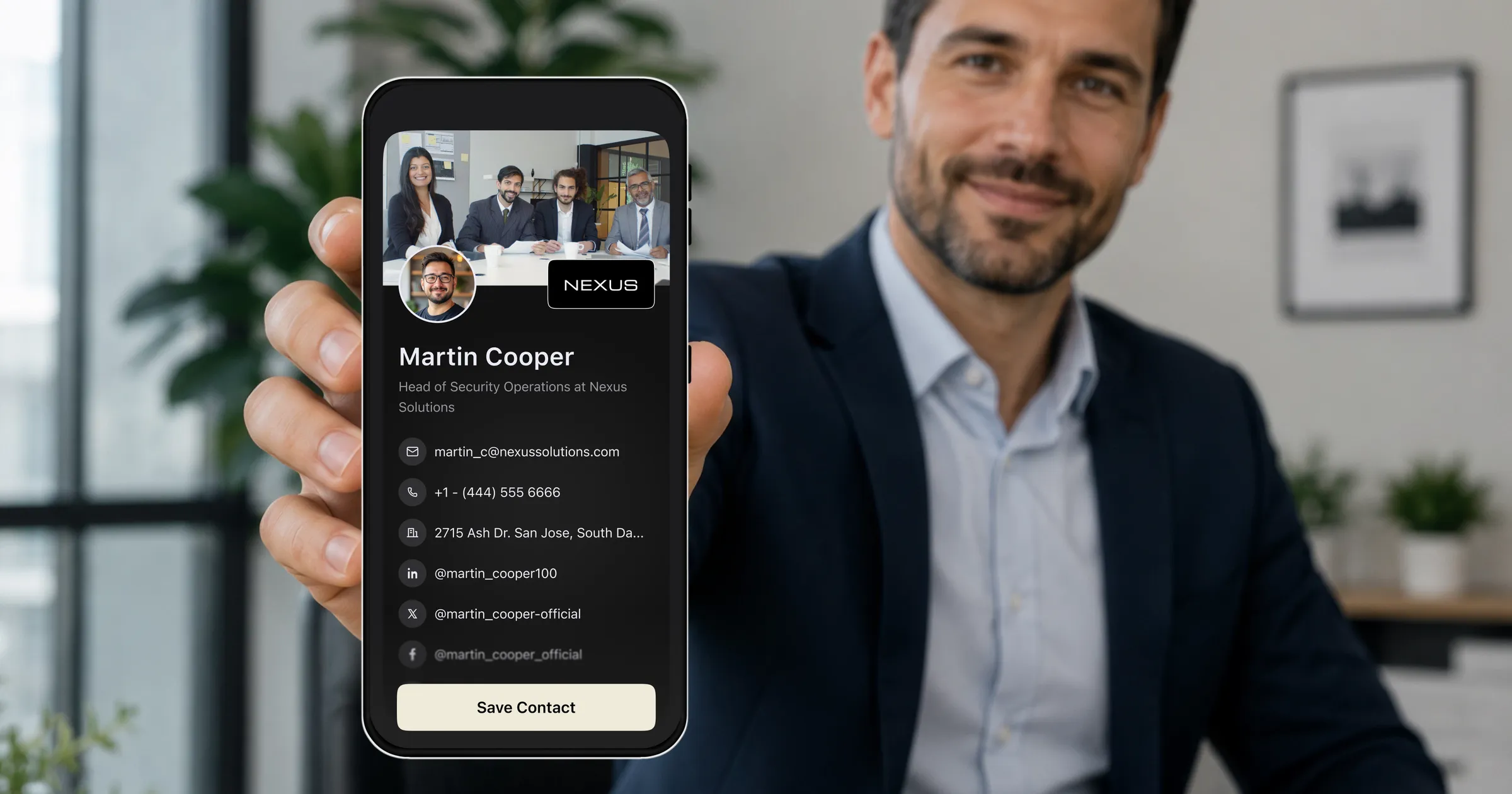
A contact QR code, also called a vCard QR code, does the opposite. Scanning it opens a contact card with a Save contact button, and one tap adds your name, phone, email, company and profile link to their address book. Your LinkedIn link travels inside it, so they can still connect.
| LinkedIn QR code | Contact QR code | |
|---|---|---|
| What a scan opens | Your LinkedIn profile | A contact card with a Save contact button |
| Saves your phone and email | No | Yes, in one tap |
| Needs LinkedIn | Documented for the LinkedIn app | No, any phone camera |
| Custom colours or logo | No | Yes |
| Available on desktop | No, mobile app only | Yes |
| Best for | Connection requests | Calls, texts and email follow-up |
Use the LinkedIn QR code when
- You want a connection request and nothing else, for example at a large meetup where you will never call most people
- Both of you already live in LinkedIn and will message there
- You are recruiting or job hunting and your profile is the pitch
Use a contact QR code when
- You want a call, a text or an email back, as with clients, suppliers and sales leads
- The person may not use LinkedIn, or not on that phone
- You are printing the code on a business card, name badge or booth sign and want it to save you, not just show you
- You want to choose what is shared, such as email but not your mobile number
You can make one free with the vCard QR code generator. Add your LinkedIn link as one of the fields and you cover both cases with a single code. Organising an event? The event badge maker puts a contact QR on every attendee's badge, and our guide to conference name badges covers where it should go.
Tips before you print a LinkedIn QR code
- Add a line of text next to the code saying what it opens, such as "Scan to connect on LinkedIn". People scan more when they know where it goes.
- Update your headline and photo before the event. The profile is what they see first.
- Keep a quiet margin around the code and print it on matte stock. Glare from glossy card stops scans under event lighting.
- Match your LinkedIn banner to the event or your current offer. The LinkedIn banner maker does this in a few minutes.
- If you print one code only, make it the contact code with your LinkedIn link inside. It does both jobs.