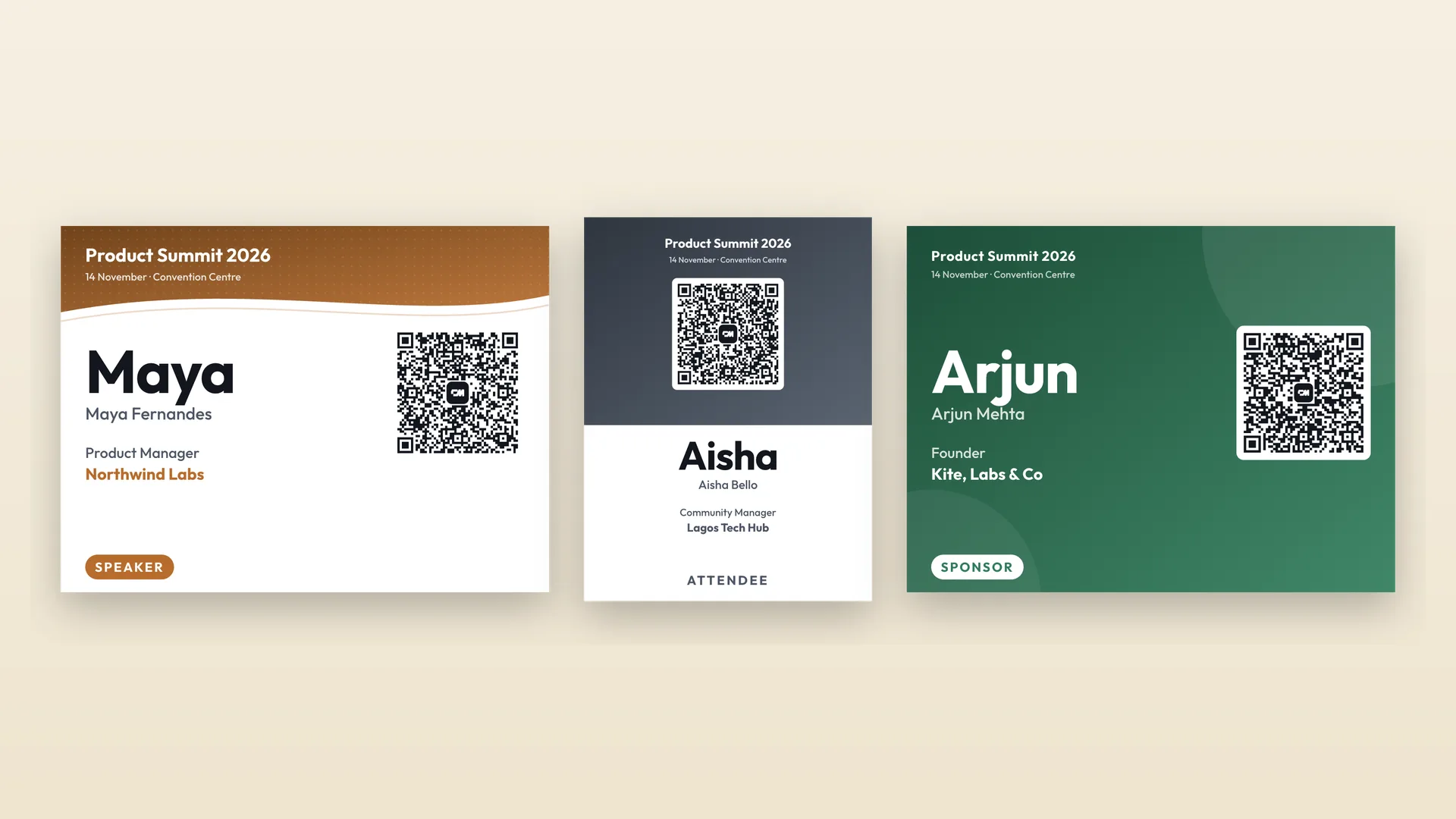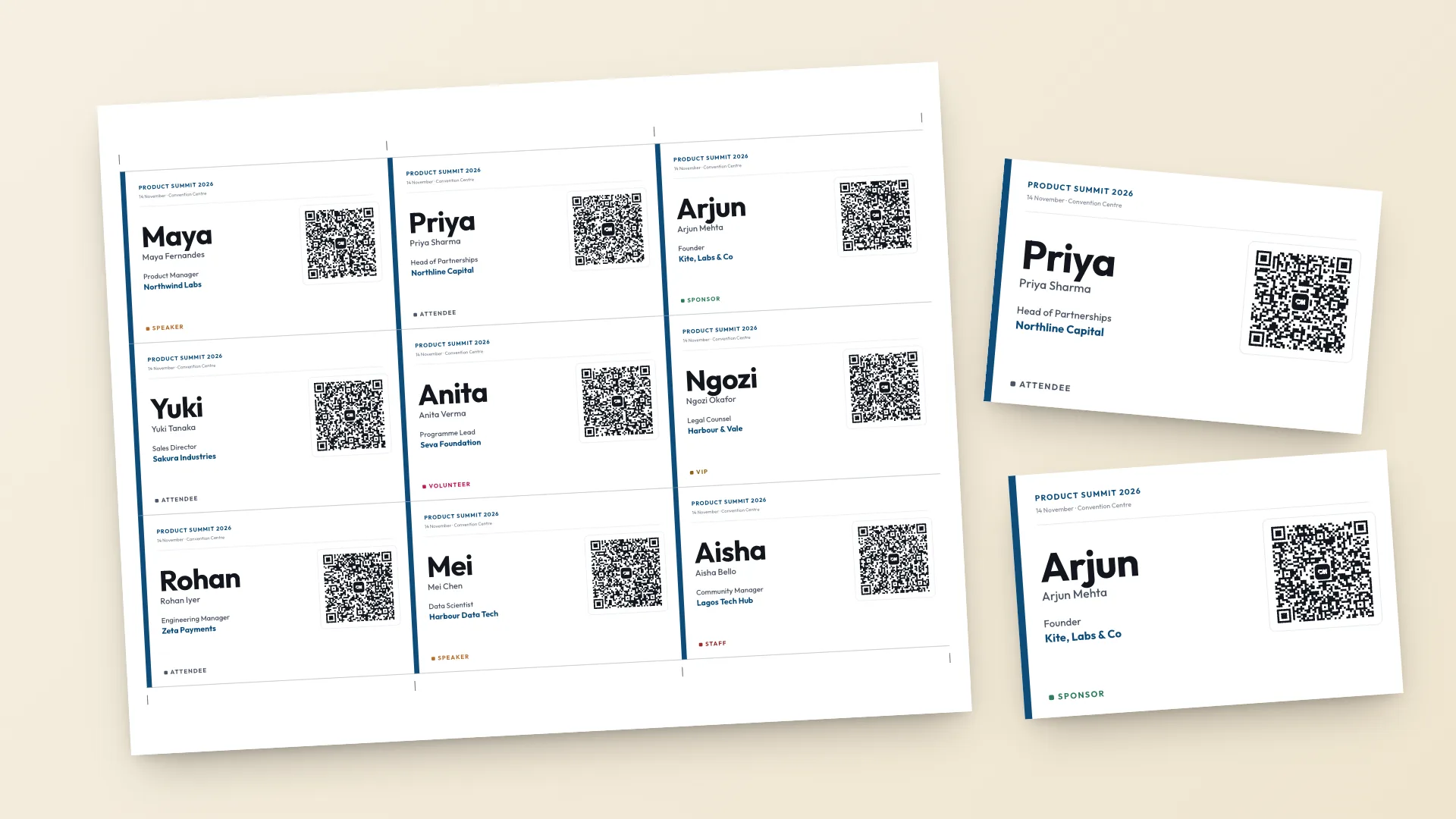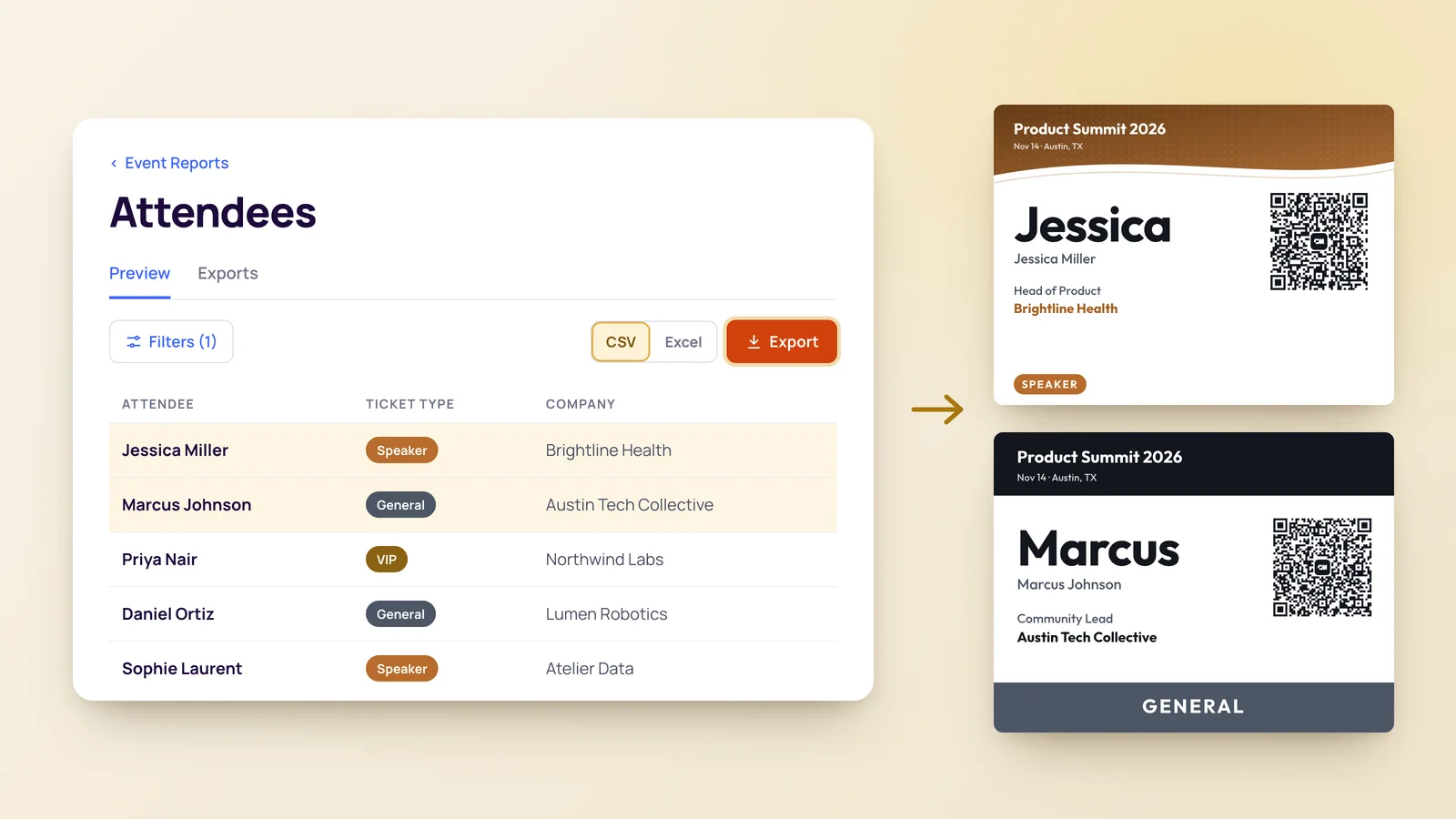

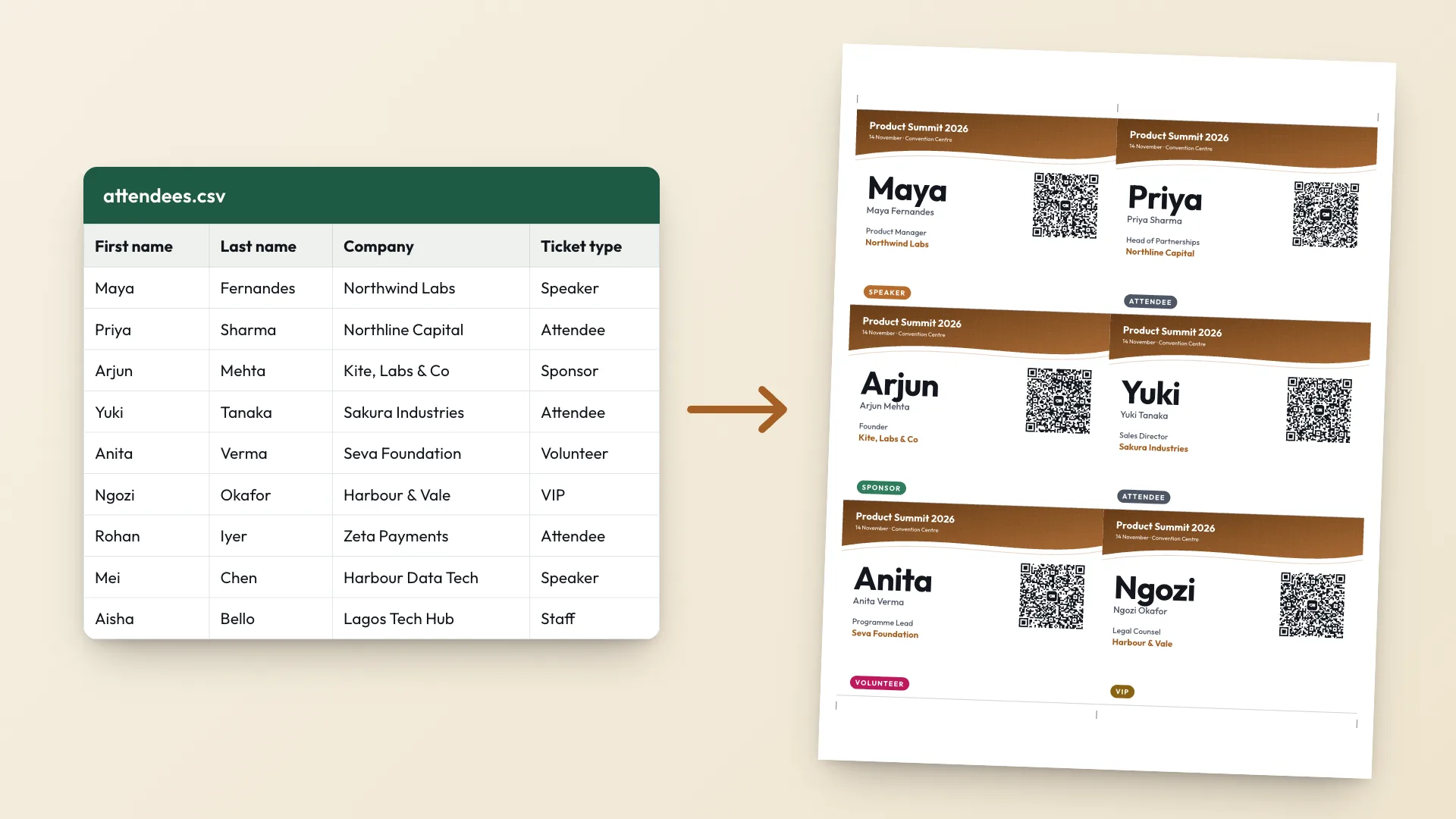
The registration list is already a spreadsheet. The problem is getting from 100 rows to 100 printed name tags without retyping a single name. The usual answer is Word mail merge, and anyone who has fought a label table in Word knows how that evening goes.
This guide uses a CSV name tag maker instead. You prepare the sheet, upload it, check the column matching and print. At the end there is a straight comparison with mail merge, including the cases where Word is still the better tool.
Get the spreadsheet ready
One row per person and a header row on top. Only a name is required. The maker recognises the common column names, so you rarely need to rename anything.
| Field | Column names that work | Needed |
|---|---|---|
| Name | Name, Full name, or First name + Last name | Yes |
| Company | Company, Organization, Employer | No |
| Job title | Job title, Title, Position, Designation | No |
| Badge type | Ticket type, Badge type, Type, Category | No. Each value gets its own colour |
Email, E-mail, Work email | No, goes in the QR code | |
| Phone | Phone, Mobile, Cell | No, off in the QR code by default |
| Social profile | LinkedIn, Social, Profile, Website | No, goes in the QR code |
Then clean the data. Delete test registrations and duplicates, fix names typed in all capitals, and shorten job titles that run past a line. Sort by last name if you will hand tags out alphabetically at a registration desk, because they print in the same order as the rows.
Save it as CSV
- Excel. File, Save As, then CSV UTF-8. The UTF-8 part keeps accented names like Zoë and José intact.
- Google Sheets. File, Download, Comma separated values.
- Registration tools. Export the attendee or guest list as CSV. Eventbrite and Luma have their own guides.
Tab-separated and semicolon-separated files work too, so a European Excel export doesn't need converting.
How many pages 100 name tags take
| Tag size | Per A4 page | Per US Letter page | Pages for 100 |
|---|---|---|---|
| 3.5 x 2.25 in name tag | 9 | 9 | 12 |
| 4 x 3 in landscape badge | 4 | 6 | 25 on A4, 17 on Letter |
| 3 x 4 in portrait badge | 4 | 6 | 25 on A4, 17 on Letter |
Tags sit edge to edge with cut marks in the margin, so a paper trimmer separates a whole row in one cut. Plan on card stock for anything going into a holder. If you are deciding between your own printer and a print shop for this many pages, see how to print event badges.
Word mail merge vs a CSV name tag maker
Mail merge is free if you already have Word, and it is the right call in some cases. Here is how the two compare on the same 100-row list.
How mail merge works
In Word: Mailings, Start Mail Merge, Labels, then pick the label product. Select Recipients, Use an Existing List, and open your spreadsheet. Insert Merge Field for each column in the first label, select Update Labels to copy the layout to the rest, then Finish & Merge.
| Word mail merge | CSV name tag maker | |
|---|---|---|
| Setup | Label table, merge fields, Update Labels | Upload CSV, check column matching |
| Long names | Wrap or overflow | Shrink to fit the line |
| Colour per ticket type | IF fields or one merge per type | Automatic, editable |
| QR code per person | MERGEBARCODE field code, Word 2013+, .docx | On every tag by default |
| Pre-cut labels (Avery 5395) | Yes, pick the product number | No, full sheets with cut marks |
| Layout control | Full | 5 templates, 3 sizes, any colour |
| Cost | Free if you own Word | Free |
Which one to use
The badge maker fits each name to its line, colours each badge type automatically and puts a contact QR code on every tag without any field codes. Nothing to install, and the file stays in your browser.
The trade-off is control. You get five templates and three sizes, not a blank canvas, and the pages don't align with pre-cut label sheets. If your event needs a custom layout on pre-cut labels, mail merge is still the better tool.
Checks before you print 100
- Flip to the longest name and the longest company in the preview. If they look cramped, shorten them in the sheet.
- Look for accented and non-Latin names. If any show as odd symbols, re-save the file as CSV UTF-8.
- Print one test page at Actual size and check it against a badge holder.
- Scan two QR codes with two different phones, one iPhone and one Android if you can.
- Keep the builder open on the day. Late registrations can get a tag in a minute with Just one person.
After the event
The QR code on each tag saves that attendee's contact to the phone that scans it. That covers the room. What happens to those contacts afterwards decides whether the event paid off, and how to follow up after a networking event covers the timing.
For tag design, sizes and what to leave off, see conference name badges people can actually read. For a small event with no registration list, printable name tags in 5 minutes is the shorter route.